
Introduction
This guide focuses on practical, hands-on Procreate techniques for iPad artists. Drawing on my background in graphics work alongside a technical career, I cover step-by-step UI actions, advanced tools (Alpha Lock, Clipping Masks, Brush Studio), export best practices, and troubleshooting tips that help you produce professional-quality artwork.
Whether you’re starting with simple sketches or producing print-ready illustrations, this tutorial breaks down workflows, provides exact UI steps, and explains how to integrate Procreate with common desktop tools for further editing.
Procreate Version & Compatibility
This guide is based on the Procreate 5X (Procreate 5 series) feature set and terminology. UI placements and feature names reflect Procreate 5X behavior; if you are using a significantly older or newer release, some menu locations or options may differ. For the most current release notes and official support, see Procreate's site: procreate.art.
Introduction to Procreate: The Digital Art Revolution
Why Procreate Stands Out
Procreate is a widely adopted iPad app that brings a responsive drawing experience to mobile devices. Its clean UI, robust Brush Studio, and non-destructive layering system let artists move from concept to polished artwork entirely on iPad. Procreate’s strong ecosystem of brushes, templates, and export options makes it suitable for illustrators, concept artists, and hobbyists alike.
- Customizable brushes via Brush Studio
- Intuitive user interface and fast gestures
- Powerful layering and blending modes
- Export options suitable for web and desktop workflows
Getting Started: Setting Up Procreate on Your iPad
Installation & Basic Setup
Install Procreate from the App Store, then open it to see your Gallery. Connect an Apple Pencil (1st or 2nd generation) to enable pressure sensitivity and tilt controls; the precise behavior depends on your Apple Pencil model and iPad hardware.
Key initial settings to review:
- Gallery > Actions (wrench icon) > Preferences — enable gesture controls you like
- Actions > Canvas — set default canvas templates you’ll reuse
- Brushes — import or create a starter brush set for your style
Screenshots & Video Guides
Visual aids (screenshots and short screencast clips) make UI-heavy instructions far easier to follow. Below are practical steps for capturing useful assets on iPad and using Procreate's built-in exports.
How to capture screenshots and screen recordings
- Take a screenshot: on Face ID iPads press the Top button + Volume Up; on older iPads press Home + Top/Side button. The screenshot saves to Photos.
- Enable Screen Recording: go to Settings > Control Center > add "Screen Recording". Open Control Center and tap the record button to capture a screencast while you demo brush settings or quick menus.
- Export a Procreate time-lapse: Actions > Video > Export Time-lapse to get a compressed replay of your session. Use the recording for short process clips on social media.
Best practices for screenshots/video clips
- Crop and annotate (arrows or callouts) to highlight the icon or menu you reference—keep annotations short (3–4 words).
- For videos, record short clips (10–30s) that focus on single actions (e.g., creating a Clipping Mask, adjusting Brush Studio settings).
- Save originals in a project folder (Dropbox or iCloud) and upload compressed versions for quick sharing.
Mastering the Basics: Tools and Features Explained
Key Tools and Their Uses
Familiarize yourself with these core tools and where to find them in the Procreate UI:
- Brush Library — top-right brush icon. Use Brush Studio to edit spacing, jitter, grain, and dynamics.
- Smudge — next to brush; useful for softening edges or blending colors.
- Erase — works like the brush tool; set hardness/opacity for varied results.
- Layers — top-right layers icon: organize foreground, midground, background; set blend modes and alpha.
- Adjustments — wand icon: apply Gaussian Blur, Hue/ Saturation, and Noise.
Creating Your First Artwork: Step-by-Step Guide
Understanding the Canvas
Choose canvas dimensions and DPI based on the final output. For print, aim for high pixel dimensions (for example, 300 DPI at the intended print size). For social media, use platform-friendly sizes to reduce manual cropping later.
- Select canvas dimensions from Gallery > + > New Canvas
- Set DPI under canvas settings for print projects
- Use templates for comics or storyboards to maintain consistent panels
- Save recurring canvas presets in the canvas size manager
How to create a new canvas in Procreate (UI steps):
open Procreate -> New Canvas -> Select dimensions
Choose dimensions and DPI, then tap Create to open your new canvas.
| Canvas Size | Best For | Example |
|---|---|---|
| A4 (high DPI) | Print projects | Posters |
| 1080 x 1920 | Digital media | Instagram Stories |
| 2048 x 2732 | High-detail artwork | Illustrations |
Procreate Workflow Diagram
This diagram maps the common stages of a Procreate project. Use the links below to jump to detailed guidance for each stage in this article:
- Sketch — Start with loose thumbnails and rough linework to lock composition and proportions. Refer to Creating Your First Artwork for canvas setup and initial strokes. Use a simple pencil brush in the Brush Library to avoid heavy strokes early.
- Block-In — Establish broad color and value areas to make composition and lighting decisions. See Mastering the Basics and the Brush Studio notes for choosing brushes that support clean flat fills and value testing.
- Details — Add texture, lighting, and refined lines. Techniques such as Alpha Lock and Clipping Masks (covered in Advanced Techniques) let you add non-destructive shading and effects.
- Export — Finalize by exporting the appropriate formats for the next stage: PNG for web, PSD for layered desktop edits, or TIFF for print. See Sharing and Exporting for exact UI steps and format guidance.
Advanced Techniques: Tips and Tricks for Pro Users
Alpha Lock & Clipping Masks
Alpha Lock and Clipping Masks let you paint within existing content without losing shapes or edges.
- Alpha Lock — In the Layers panel, swipe right on a layer to enable Alpha Lock. Paint directly on the layer to preserve transparency. Useful for texture passes on a character without affecting background areas.
- Clipping Mask — Create a new layer above a base layer, tap the layer, and choose Clipping Mask. All painting on the clipped layer affects only non-transparent pixels of the base layer. Great for shading and highlights.
Reference Companion & Advanced Reference Usage
Use the Reference feature to pin a reference image to your canvas while you draw. Open Actions (& wrench) > Canvas > Reference, then choose Image or Layers. The Reference window can stay visible while you work, enabling direct color sampling and composition checks.
Gesture Controls & QuickMenu
Customize gestures to speed up repetitive tasks:
- Actions > Prefs > Gesture Controls — map double-tap and three-finger gestures.
- Enable QuickMenu: press and hold (or assign a gesture) > Customize — add brushes, undo, or transform as shortcuts.
UI steps to set QuickMenu:
tap and hold for QuickMenu -> Customize
Brush Studio: Creating a Custom Brush
Brush Studio is where you create professional brushes. Key tabs to modify:
- Stroke — adjust spacing and jitter
- Shape — import or edit the brush tip
- Grain — set texture that the brush paints with
- Dynamics — enable pressure and tilt to map opacity/size
Practical steps:
- Open Brush Library > + > New Brush
- Under Shape, Import a custom round or textured tip (PNG)
- Tweak Spacing in Stroke and Grain in Grain to get desired texture
- Save and test at multiple pressure settings
Animation Assist & Frame Management
Turn on Animation Assist in Actions > Canvas to enable onion-skinning and timeline controls. Keep frame counts low for hand-drawn animation; export as GIF, MP4, or image sequences depending on delivery needs.
Real-world Example: Texture Pass Mini-Case Study
This expanded mini-case study shows a texture-pass workflow I use for client portrait work. It focuses on keeping the process non-destructive and revision-friendly.
- Canvas & Brush Prep — Start with a canvas preset sized for the final use (see Canvas). Create or import two test brushes in Brush Studio: a soft grain brush for base textures and a detailed ink brush for hair/edge work. In Brush Studio, verify pressure-to-size and pressure-to-opacity mappings before committing.
- Base Layers and Clipping Masks — Block in color on separate layers: skin, clothing, background. Use Clipping Masks for shadow and highlight passes so you can adjust base colors without losing shading. Keep each major pass on its own layer group to preserve editability.
- Texture Application — For texture, use a grain layer above the base with a Multiply or Overlay blend mode. Either use Alpha Lock on the base layer to paint directly into existing pixels or paint on a clipped texture layer to keep edits reversible. Import a PNG grain in Brush Studio if you need a repeating texture that matches your style.
- Refinement and Non-Destructive Effects — Add a soft dodge/burn layer as a clipped layer to refine form. When using Gaussian Blur or Noise (Actions > Adjustments), duplicate the layer first so you can toggle the effect later. Test the result at 100% zoom and at final export size to ensure texture scale reads correctly.
- Export & Backup — Export a layered PSD (Actions > Share > PSD) when sending to desktop Photoshop for final color grading. Save a .procreate backup and upload copies to iCloud or Dropbox. Keep a time-lapse export for client revision records.
Considerations from experience: avoid applying large global raster effects on the topmost merged layer until you have an exported PSD backup. If working on older iPad hardware, merge non-essential layers to conserve RAM but retain separate master files with all layers for archival purposes.
Troubleshooting & Best Practices
Backup & File Management
Keep regular backups of your Procreate files. Use iCloud Drive or export .procreate/.psd files to Dropbox or a local server. If you plan to continue work in desktop Photoshop, export a layered PSD from Procreate (Actions > Share > PSD).
Handling Large Files & Performance
- Reduce the number of simultaneous high-resolution canvases to avoid memory issues on older iPads.
- Rasterize or merge temporary layers after finishing complex passes to lower memory usage.
- If Procreate crashes while exporting, try exporting smaller sections or export as PNG sequence and combine on desktop.
Common Issues & Fixes
- Canvas lag during brush strokes — close background apps and toggle off AssistiveTouch if active.
- Missing brushes after app updates — re-import from backed-up brush files (.brush or .brushset).
- PSD layers flattened in other apps — verify layer groups and blending modes after import into Photoshop.
Security & Privacy
When sharing files, avoid embedding sensitive information in file metadata. Use secure cloud storage (e.g., Dropbox or iCloud with two-factor authentication enabled) for collaborative workflows. For client work, consider using password-protected ZIP archives for bulk transfers if using shared links.
Pro Tips & Common Mistakes
- Pro Tip: Keep a "testing" canvas at the same DPI as your project to quickly test brush behavior and texture scale at 100% zoom before applying to the main artwork.
- Pro Tip: When creating custom brushes in Brush Studio, export and version your brushset (.brushset) so you can roll back to earlier settings if a recent tweak breaks your workflow.
- Common Mistake: Starting with an excessively high DPI for large format prints on an iPad with limited RAM. This causes crashes — plan for final output and test incremental increases.
- Common Mistake: Flattening layers too early. Always keep a layered PSD backup for future edits and client revisions.
- Security Tip: Enable two-factor authentication on cloud accounts (Dropbox, iCloud). Keep only the minimum required metadata in shared files.
Glossary of Terms
- Alpha Lock — Locks a layer's transparency so you can paint only inside existing pixels.
- Clipping Mask — A layer mode where the top layer affects only the non-transparent pixels of the layer below.
- Brush Studio — Procreate's brush editor where tip, grain, stroke, and dynamics are configured.
- Canvas — The working image area defined by pixel dimensions and DPI.
- DPI — Dots per inch; controls print resolution. Use 300 DPI for most print work.
- Onion-skinning — Animation Assist feature that shows frames before/after to help with animation timing.
- Time-lapse — A compressed video exported by Procreate that records the painting process.
- PSD — Adobe Photoshop document; Procreate can export layered PSD files for desktop edits.
Further Reading
Official documentation, community support, and desktop tool pages where you can find more advanced tutorials and resources:
- Procreate (official site) — official FAQs, tutorials, and product news.
- Adobe — information about Photoshop for finishing PSD exports on desktop.
- Reddit — active user communities and topic threads (search Procreate subreddits for tips and brushes).
- YouTube — abundant video tutorials, walkthroughs, and process videos.
- Dropbox — cloud storage for backups and large exports.
- iCloud — Apple cloud storage, useful for iPad backups and Procreate file sync.
Conclusion
Procreate on iPad is a capable tool for both quick concept work and finished art. Its combination of Brush Studio, fast gestures, and export options supports a full digital art pipeline. For examples, featured artists, and official resources about Procreate’s use in professional contexts, see Procreate’s official site: procreate.art.
Start by mastering brush customization, Alpha Lock, and Clipping Masks. Then incorporate reference images, work in layers, and export PSDs when you need desktop-level editing. These practices will make your Procreate workflow more reliable and efficient.
Key Takeaways
- Use Alpha Lock and Clipping Masks for non-destructive shading and highlights.
- Create and test custom brushes in Brush Studio for unique textures and consistent strokes.
- Export layered PSD files for advanced desktop editing; export PNG for web assets.
- Back up .procreate or PSD files via iCloud Drive or other secure cloud storage to avoid data loss.
About the Author
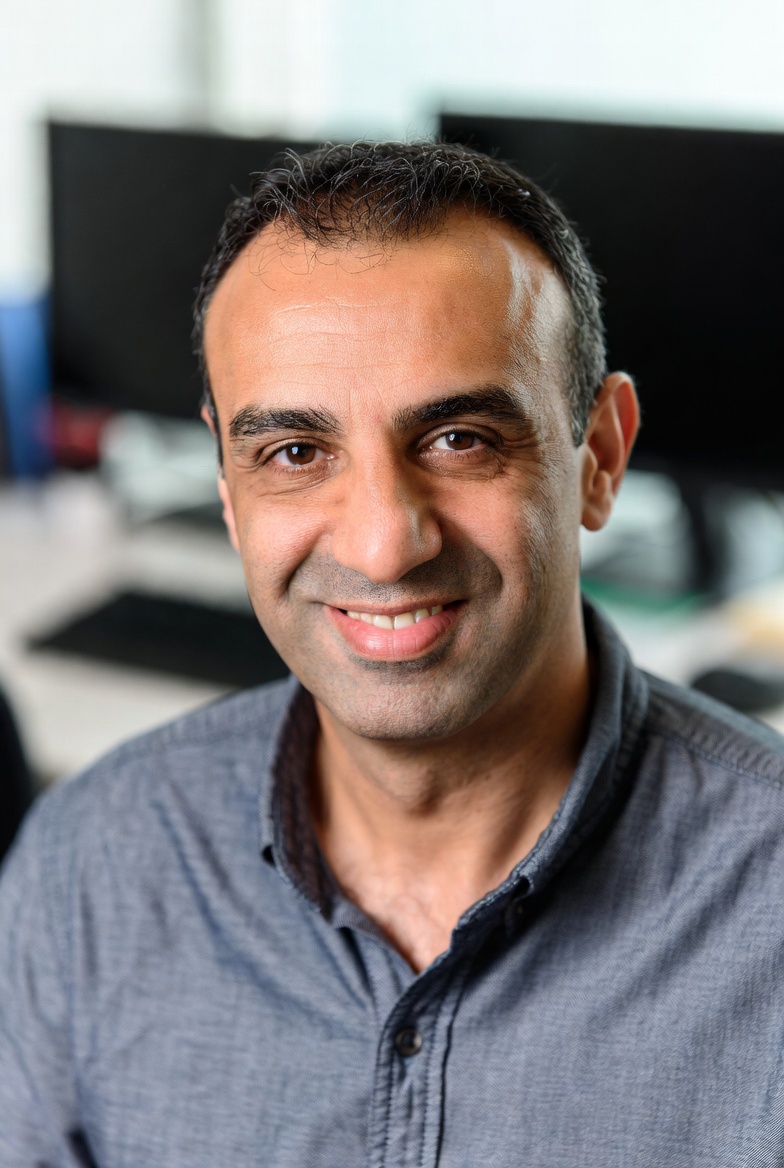
Ahmed Hassan combines a technical background in network security with hands-on graphics experience creating illustrations and web assets. He has completed client commissions that used Procreate for initial painting and Adobe Photoshop for final color grading. Ahmed focuses on practical workflows that keep art non-destructive and revision-friendly.