
Introduction
Ready to bring your creative visions to life in three dimensions? 3D graphics lets you design characters, environments, and interactive experiences that look and feel real — from game worlds to architectural visualizations. You'll get practical, tool-focused guidance so you can move from basic shapes to polished renders and simple interactive scenes.
This guide covers essential workflows and tools (for example, Blender 3.6 for modeling and rendering, and Unity 2023 for real-time projects). You’ll learn modeling, texturing, lighting, and animation with hands-on examples — like building a simple 3D game scene or producing a short animated shot — plus troubleshooting and best practices used in studios and indie teams alike.
By the end of this guide you'll have actionable steps and references to start making your own 3D projects and iterating faster.
Introduction to 3D Graphics: Concepts and Applications
Understanding the Basics
3D graphics involve creating visual content in three dimensions so models can be posed, lit, and rendered or played back in real time. Core concepts are models (geometry), textures (surface detail), and lighting (how scenes are illuminated). A model is built from a polygon mesh, textures map 2D images onto that mesh, and lighting defines how materials look under render or in-engine.
Common applications include games, film/VFX, simulation, product visualization, and AR/VR. For example, a game uses real-time engines (Unity, Unreal) while a VFX shot often uses offline renderers (Cycles, Arnold) for physical accuracy.
- Models represent objects in 3D space.
- Textures provide surface detail to models.
- Lighting creates realistic shadows and highlights.
- Animation adds movement to static models.
- Rendering converts 3D scenes into 2D images or real-time frames.
To check the local Blender installation and bundled renderers, run (works with Blender 3.6+):
blender --versionThis prints Blender's version and lists bundled engines such as Cycles and Eevee.
| Concept | Description | Example |
|---|---|---|
| Model | 3D representation of an object | A car or a character |
| Texture | Surface detail applied to a model | Wood grain or fabric pattern |
| Lighting | Simulates how light interacts with surfaces | Sunlight or artificial light sources |
Essential Tools for 3D Graphics: Software and Hardware
Choosing the Right Software
Selecting the right software affects speed and output. Popular, widely adopted tools include Blender (open-source), Autodesk Maya and 3ds Max (industry-standard for animation and modeling, respectively), Cinema 4D (motion graphics), ZBrush (sculpting), Unity (real-time engine) and Unreal Engine (real-time with advanced GI like Lumen).
Blender is a good starting point (Blender 3.6+ adds improved sculpting/geometry tools). For up-to-date installers and LTS builds, grab releases from the official Blender site: https://www.blender.org/.
- Blender: Open-source, versatile, and powerful (good for modeling, sculpting, and rendering).
- Maya: Preferred for advanced rigging and production animation.
- 3ds Max: Strong for architecture and hard-surface modeling.
- Cinema 4D: Great for motion graphics workflows.
- ZBrush: Industry tool for high-detail sculpting.
On Ubuntu you can install Blender via apt, but the apt repository may lag behind the latest official release. Example (Ubuntu/Debian):
sudo apt update && sudo apt install blenderFor the latest Blender builds or official installers for Windows/macOS, use https://www.blender.org/.
| Software | Best For | Notable Features |
|---|---|---|
| Blender | General use | Open-source, Cycles/Eevee renderers |
| Maya | Animation | Robust rigging and animation tools |
| 3ds Max | Architecture | Strong modeling and rendering plugins |
Basic Techniques in 3D Modeling: Getting Started
Fundamental Modeling Techniques
Start by learning polygon modeling (vertices, edges, faces). Typical workflows combine box-modeling, extrusion, and subdivision surfaces. For organic shapes, use sculpting workflows (Blender Sculpt, ZBrush) and retopologize when targeting animation.
Step-by-step example: make a simple chair in Blender 3.6:
- Create a cube (Add > Mesh > Cube).
- Tab into Edit Mode, select top face and Extrude (E) upwards to form a backrest.
- Select bottom faces, Extrude downwards for legs.
- Use Scale (S) to adjust proportions and Loop Cut (Ctrl+R) to add edge loops for sharper edges.
- Apply Subdivision Surface modifier for smoothing, then adjust creases or supporting loops for control.
Sculpting is useful for organic models — use DynTopo or Multiresolution in Blender, or ZBrush’s brushes for high-res detail before baking normal maps for game assets.
- Polygon modeling: Manipulating shapes with vertices.
- Sculpting: Creating organic forms.
- UV mapping: Applying textures to models.
- Subdivision surfaces: Smoothing models.
- Rigging: Preparing models for animation.
To check the version of your modeling tool (Blender example):
blender --versionThis prints Blender's version (recommended: use Blender 3.6+ for the features discussed).
| Technique | Description | Use Case |
|---|---|---|
| Polygon Modeling | Creating shapes with vertices and edges | Modeling hard surfaces like cars |
| Sculpting | Manipulating shapes like clay | Creating characters and organic forms |
| UV Mapping | Mapping 2D textures onto 3D models | Texturing game assets |
Understanding Texturing and Materials in 3D
The Importance of Texturing
Texturing adds realism — use high-resolution albedo/diffuse maps, roughness, metallic, normal maps, and ambient occlusion to capture material response. For production, combine hand-painted and photo-sourced maps, and bake high-res detail into normal/ao maps for real-time engines.
Materials define light interaction: parameters like roughness, IOR (index of refraction), and subsurface scattering determine how light scatters. Blender’s Cycles renderer is physically based; when tweaking metallic surfaces adjust roughness to control glossiness.
- Use PBR (physically based rendering) workflows for consistent results between DCC tools and engines.
- Combine multiple texture maps (albedo, normal, roughness, AO).
- Use procedural textures for scalable detail where appropriate.
- Maintain consistent texel density across assets for games.
- Respect licensing for any photographic textures you use.
Blender Python: apply a material slot and assign a simple Principled BSDF (Blender 3.6+):
import bpy
obj = bpy.data.objects.get('Cube')
if obj is None:
    raise SystemExit('Cube not found')

# Ensure object has a material slot
mat = bpy.data.materials.new(name='MyMaterial')
mat.use_nodes = True
bsdf = mat.node_tree.nodes.get('Principled BSDF')
if bsdf:
    bsdf.inputs['Roughness'].default_value = 0.3

obj.data.materials.append(mat)
This script creates a material and assigns it to the object named 'Cube'. Run inside Blender's scripting workspace or via blender --background --python your_script.py.
| Material | Key Properties | Common Uses |
|---|---|---|
| Wood | Natural grain, matte finish | Furniture, flooring |
| Metal | High gloss, reflection | Vehicles, machinery |
| Glass | Transparency, refraction | Windows, bottles |
Lighting and Rendering: Bringing Your Models to Life
Understanding Lighting Types
Lighting sets mood and readability. Point lights are omnidirectional, spotlights focus, directional lights simulate sunlight, and area lights create soft studio-like illumination. Use three-point lighting for clear character presentation (key, fill, rim).
For real-time projects, Unreal Engine 5 (Lumen) and Unity 2023 with its Scriptable Render Pipelines (URP/HDRP) offer advanced real-time GI and post-processing. For offline renders, Cycles and Arnold provide physically-based sampling and shading.
- Experiment with light size for soft vs. hard shadows.
- Use color temperature to evoke a time of day (warm for sunset, cool for overcast).
- Balance intensity between direct and ambient light for readable renders.
- Use light linking or light groups to isolate illumination for key elements.
- Post-process (denoise, color grading) for final polish.
Unreal Engine example pseudo-call to set light color/intensity (engine-specific):
// Pseudocode illustrating concept
SetLightColor(LightActor, FLinearColor(1.0f, 0.9f, 0.8f));
SetLightIntensity(LightActor, 5000.0f);
Adjust these values in-editor to tune your scene's mood.
| Light Type | Characteristics | Best Use Cases |
|---|---|---|
| Point Light | Omnidirectional, emits light in all directions | Indoor scenes |
| Spotlight | Directional, cone-shaped light | Focus areas |
| Directional Light | Simulates sunlight, parallel rays | Outdoor scenes |
| Area Light | Soft shadows, defined area of light | Studio setups |
| Sky Light | Ambient light from the sky | Exterior environments |
Animating in 3D: Principles and Techniques
Fundamentals of Animation
Animation gives life to assets. Core principles—timing, spacing, anticipation, follow-through—are universal. Study real motion, block key poses, refine with breakdowns and in-betweens, then polish easing curves and secondary motion.
Key techniques include rigging (building a skeleton, skinning weights), keyframing, and using inverse kinematics (IK) for natural limb movement. Motion capture can accelerate realistic motion but requires cleanup and retargeting.
- Study motion reference (video/rotoscoping) before animating.
- Use stepped tangents to block poses, then spline for polish.
- Keep rigging modular: controllers separate from skeleton joints.
- Automate repetitive tasks with scripts—Maya/Python or Blender/Python are valuable here.
- Retarget mocap to your rigs carefully to avoid foot sliding.
Example: set keyframes in Maya using Python:
import maya.cmds as cmds
cmds.setKeyframe('pCube1', time=1, attribute='translateX', value=0)
cmds.setKeyframe('pCube1', time=10, attribute='translateX', value=10)
These commands create translation keyframes on 'pCube1'.
| Animation Technique | Description | Use Cases |
|---|---|---|
| Keyframing | Defining motion at specific points | Character animations |
| Rigging | Creating a skeletal structure | Complex models |
| Motion Capture | Recording real-life movements | Realistic animations |
Best Practices for 3D Graphics Workflow
Streamlining Your Process
Use a consistent pipeline: concept > block > model > UV > texture > rig > animate > render/export. Define milestones and review checkpoints to catch problems early. Maintain clear naming conventions and folder structures for assets and versions.
Version control matters for non-text binary assets too — Git LFS can help, or specialized version control systems (Perforce is common in game studios). For collaboration, use a shared asset library and document asset requirements (poly count, texture sizes, naming).
- Establish clear project milestones.
- Use non-destructive workflows (modifiers, layered textures).
- Keep consistent naming conventions and asset metadata.
- Regularly back up and archive production-ready versions.
- Optimize assets for target platform (polycounts, LODs, texture atlases).
Initialize a Git repository for text-based project files and scripts with:
git initFor large binary assets, consider Git LFS or dedicated VCS used in studios.
| Stage | Best Practice | Example |
|---|---|---|
| Modeling | Proper topology | Use quads for better deformation |
| Texturing | UV mapping | Ensure textures fit without stretching |
| Rigging | Joint placement | Align joints with natural limb movement |
Resources for Continued Learning in 3D Graphics
Expanding Your Knowledge
Learn by doing: follow project-based tutorials on Udemy and Coursera, study Blender's official tutorials at https://www.blender.org/support/tutorials/, and participate in community challenges. Communities like Blender Artists and the Autodesk forums are helpful for feedback and troubleshooting.
Practice small, focused projects (e.g., a stylized prop, a short walk cycle) and progressively increase complexity. Join asset marketplaces or challenge sites to see production-level work and constraints.
- Follow structured courses and project tutorials.
- Join 3D graphics communities for critique and collaboration.
- Attend workshops and webinars to learn industry workflows.
- Participate in online challenges to push your skills.
- Subscribe to tool-specific updates (Blender, Unity, Unreal).
Blender automation example: select all mesh objects via Python inside Blender:
import bpy
bpy.ops.object.select_all(action='DESELECT')
bpy.ops.object.select_by_type(type='MESH')
Run this script in Blender's scripting tab or batch-mode for pipeline tasks.
| Resource Type | Description | Example |
|---|---|---|
| Online Courses | Structured learning | Udemy, Coursera |
| Communities | Feedback and support | Blender Artists, Autodesk forums |
| Challenges | Skill enhancement | ArtStation competitions |
Glossary of Terms
- 3D Model: A digital representation of a three-dimensional object composed of geometry and materials.
- Polygon Mesh: A collection of vertices, edges, and faces that form the surface of a 3D object; the standard geometry type for real-time and many production workflows.
- Vertex: A single point in 3D space; vertices connect to form edges and faces.
- Edge Loop: A continuous ring of edges that forms a loop around a mesh; important for clean topology and deformation during animation.
- Normal Map: A texture that encodes surface normal directions to simulate high-detail surface shading on a low-poly mesh.
- Texture: A 2D image (albedo/diffuse, roughness, metallic, normal) applied to a model to give surface detail.
- Rigging: The process of creating a skeleton of bones/joints and control rigs so a character or object can be animated.
- Keyframe: A recorded value of a property (position, rotation, scale) at a specific time; animation is created by interpolating between keyframes.
- Render Farm: A cluster of machines used to render frames in parallel for faster offline rendering; commonly used in animation and VFX pipelines.
- Lighting: The setup of light sources and environmental illumination that determines how materials appear.
- UV Mapping: The process of unwrapping a 3D surface to a 2D plane so textures can be applied without distortion.
- Subdivision Surface: A modeling technique that smooths geometry by subdividing faces; useful for producing smooth, high-quality surfaces from a low-poly base.
Common Pitfalls and Troubleshooting Tips
Avoiding Common Mistakes
As you embark on your 3D graphics journey, being aware of common mistakes can save you time and frustration. Here are some pitfalls to avoid:
- Poor Topology: Ensure your models have good edge flow for animation. Bad topology can cause unwanted deformations.
- Ignoring UV Mapping: Always unwrap your models properly to avoid texture stretching.
- Over-Complexity: Start simple. Complex models can be daunting; break them down into manageable parts.
- Neglecting Lighting: Lighting can make or break your scene. Experiment with different setups.
Troubleshooting Example: Stretched or Misplaced Textures
If textures appear stretched or misaligned on your model, follow these concrete troubleshooting steps (Blender 3.6+):
- Check object scale: select object and apply scale to reset transforms (Object > Apply > Scale or via Python):
import bpy obj = bpy.context.active_object bpy.ops.object.transform_apply(location=False, rotation=False, scale=True) - Open the UV Editor: ensure UV islands are correctly unwrapped and proportionate. Use "Average Island Scale" then "Pack Islands" to normalize texel density.
- Inspect seams: poorly placed seams can cause stretching. Mark seams along logical edges and unwrap again (U > Unwrap).
- Recalculate normals: inverted normals can cause shading and texture problems. In Edit Mode:
bpy.ops.mesh.normals_make_consistent(inside=False) - Verify material mapping: in the Shader Editor, confirm the Image Texture node is using the UV output (Texture Coordinate > UV).
- Check texture resolution and aspect ratio: low-resolution or non-square textures can look stretched — use appropriate resolution (e.g., 2048x2048 for mid-range game assets).
- Bake problematic maps if needed: bake normal/ambient occlusion from a high-res mesh to a low-res target to preserve surface detail without relying on stretched UVs.
If problems persist, export a test OBJ and open it in a fresh Blender scene to isolate whether the issue is scene-specific or asset-specific.
Security & Licensing Tips
- Verify texture and asset licenses before using them in commercial projects (use reputable sources and read EULAs).
- Scan downloaded archives and avoid running unknown Python scripts embedded in .blend files from untrusted sources.
- Maintain backups and use isolated workspaces when testing assets from unfamiliar authors.
For further troubleshooting, consult official documentation or community threads (search tool-specific forums for precise error messages and workflows).
Key Takeaways
- Understanding geometry (vertices, edges, faces) and how textures and lighting interact is foundational.
- Start with Blender 3.6 for modeling and Cycles/Eevee rendering, and explore Unity 2023 or Unreal for interactive projects.
- Use proper UV mapping, maintain consistent texel density, and follow topological best practices for animation-ready assets.
- Use three-point lighting and iterative lighting tests to improve scene readability and mood.
Frequently Asked Questions
- What software should I start with for 3D modeling?
- Blender is an excellent choice for beginners. It offers robust features and is free, with an active community and frequent updates (see https://www.blender.org/).
- How can I improve my 3D modeling skills more quickly?
- Practice consistently, work on small, focused projects, follow project-based tutorials, and solicit feedback from communities and peers.
- What is UV mapping and its importance?
- UV mapping projects a 2D image onto a 3D model's surface. It’s essential for accurate texturing and avoiding stretch or seams.
- Can I learn 3D graphics without prior experience?
- Yes—start with beginner projects in Blender and gradually build complexity. Use online courses and community feedback to accelerate learning.
Conclusion
To truly master 3D graphics, you'll need to learn and practice core concepts like geometry, shading, and lighting while applying them in tools such as Blender 3.6, Unity 2023, or Unreal Engine. Hands-on projects, iterative practice, and studying real-world references will accelerate your progress.
Begin with small projects — a stylized prop, a short animation, or a simple interactive scene — and iterate. Use official tool resources (for example, Blender's documentation at https://www.blender.org/) and engage with communities for critique. Over time you'll develop a workflow that balances speed and quality, preparing you for more advanced production work.
About the Author
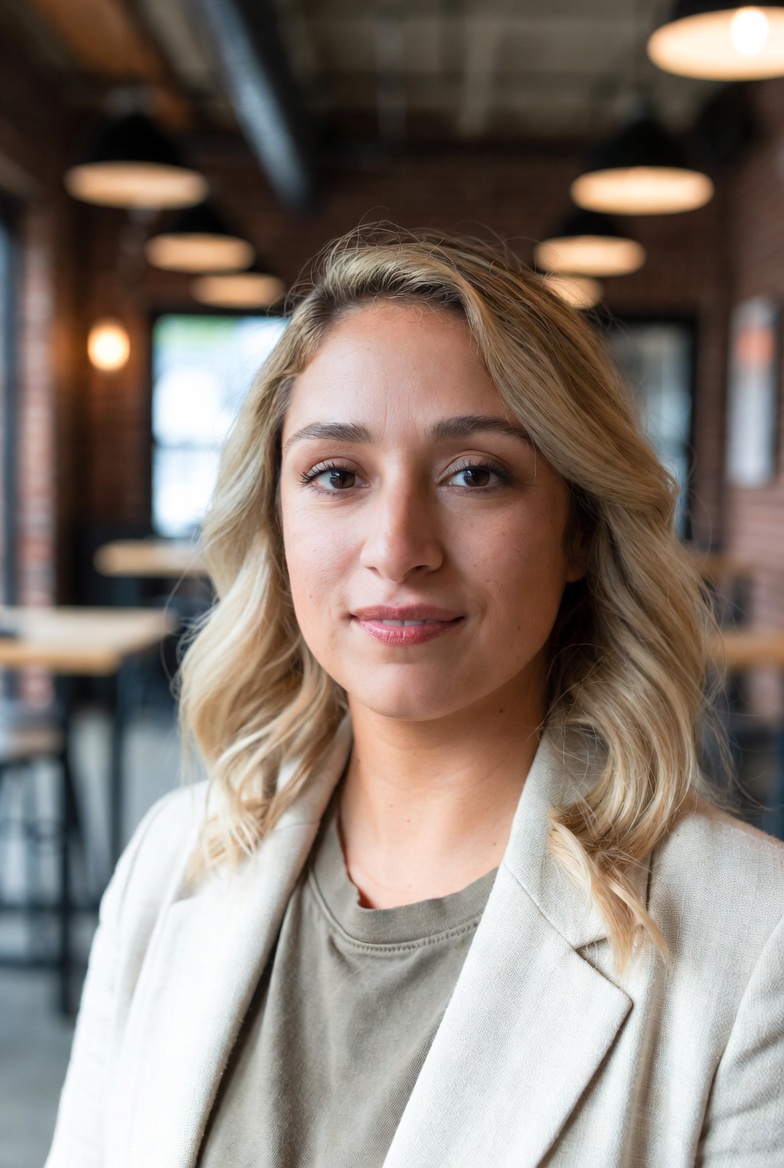
Olivia Martinez is a Computer Science professional with 7 years of experience in 3D graphics, specializing in algorithms and data structures for real-time rendering and game development. She has worked on various projects, enhancing her expertise in the field.