 Computer Programming
 Web Programming
 Computer Science
 Computer Network
 Computer Database
 Computer Architecture
 Computer Security
 Operating Systems
 Office Applications
 Computer Graphics
 Other IT Topics
Free Graphic Design PDF Library: Tools and Techniques
Computer Graphics (Photoshop, Procreate, Blender 3D, video) — 34 free PDF courses and tutorials, direct download, no account required.
Filters & sort 34 PDFs
Free Computer Graphics PDFs 34
Capture One 22 User Guide PDF: Master Your Editing Skills
Download free Capture One 22 User Guide PDF. Learn EIP packing, metadata management, editing tools, and tethered capture. Perfect for photographers.
Open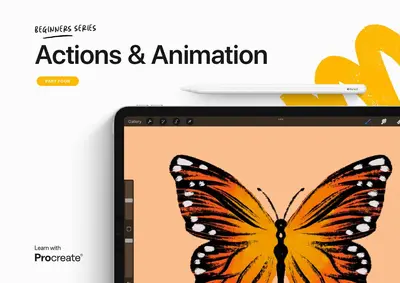
Procreate PDF: Actions & Animation
Learn Procreate with this free PDF. Covers image insertion, drawing guides, animation techniques, and blending modes. Perfect for digital artists.
Open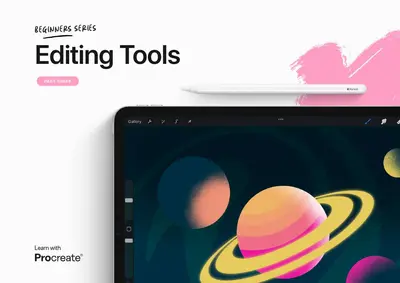
Procreate PDF: Editing Tools for Complete Artistic Mastery
Download free Procreate: Editing Tools PDF. Learn Transform, Selection, Clipping Masks, and Adjustments. Perfect for beginners in digital art.
Open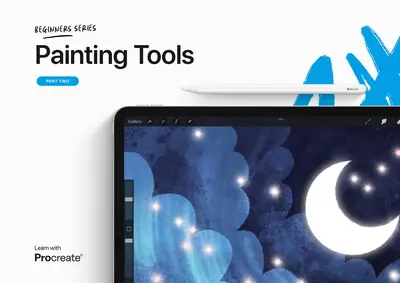
Procreate PDF: Painting Tools — Essential Digital Guide
Download free Procreate: Painting Tools PDF. Learn QuickShape, ColorDrop, Layer Options, and Brush Studio. Perfect for beginners in digital art.
Open
Procreate PDF: The Fundamentals — Beginner Digital Art Course
Learn Procreate fundamentals PDF: brushes, color, layers, gestures and effects with practical exercises and projects—ideal for beginners and improving artists.
Open
An Introduction to Blender 3D PDF: Beginner's Guide
Learn essential Blender 3D modeling, interface navigation, and animation techniques with this in-depth PDF guide perfect for beginners and enthusiasts.
Open
Comprehensive Blender Basics for Beginners — Free PDF
Discover essential Blender skills with this comprehensive PDF guide, covering interface, modeling, rendering, and animation to kickstart your 3D creative journey.
Open
Premiere Pro 2021 Essential Skills — Free PDF
Free PDF: Learn the essential skills of Adobe Premiere Pro 2021, from project setup to editing techniques. Enhance your video editing workflow today.
Open
Adobe Premiere Pro CC PDF – Quick Guide
Learn how to navigate Adobe Premiere Pro CC 2021 with this detailed PDF guide on interface, tools, workspace, and editing techniques for effective video production.
Open
Photoshop CC 2018 Essential Skills PDF: A Beginner's Guide
Download free Photoshop CC 2018 Essential Skills PDF. Learn image cropping, layer management, text editing, and resolution adjustments. Perfect for beginners.
Open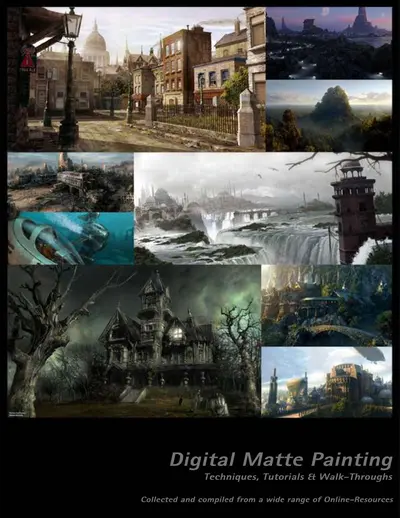
Photoshop Digital Matte Painting — Free PDF
Download free Photoshop Digital Matte Painting PDF. Learn matte painting basics, compositing techniques, color correction, and creating textures.
Open
Digital Painting with KRITA PDF: User Interface Guide
Learn Krita's interface, brush and layer workflows, canvas controls and workspace customization with PDF exercises and mini-projects for practical digital painting.
Open
Simple Photorealism using Persistence of Vision — Free PDF
Learn how to create stunning 3D images and animations with Persistence of Vision Raytracer in this easy-to-follow PDF guide for beginners and hobbyists.
Open
InDesign CC 2017 Essential Skills — Free PDF
Master Adobe InDesign CC 2017 basics PDF: document setup, master pages, text & paragraph formatting, image placement, and exporting for print and web.
Open
Adobe Photoshop CC 2015 Part 1 PDF: The Basics
Master the basics of Adobe Photoshop CC 2015 with this comprehensive PDF guide, covering tools, image editing, and printing techniques.
Open
Photoshop Basic Photo Editing PDF: Master Essential Skills
Download free Photoshop Basic Photo Editing PDF. Learn layers, tools, menus, and color themes. Perfect for beginners eager to enhance their skills.
Open
Creating a Logo Using CorelDraw PDF: Master Design Skills
Download free Creating a Logo Using CorelDraw PDF. Learn to draw shapes, add colors, duplicate objects, and fit text to paths. Perfect for beginners.
Open
Create Flyer using CorelDraw PDF: Practical Design Tutorial
Learn Corel Draw design with this free PDF. Covers document setup, text formatting, image placement, and design tips. Perfect for beginners and marketers.
Open
Adobe Photoshop CC 2015 PDF: Complete Beginner's Guide
Download free Adobe Photoshop CC 2015 PDF. Learn cropping techniques, resizing images, color adjustments, and document setup. Perfect for beginners.
Open
Getting Started with Adobe After Effects CC — Free PDF
Download free Getting Started with Adobe After Effects CC PDF. Learn project setup, importing footage, creating compositions, and adding effects.
OpenReaders' favourites in Computer Graphics
The five PDFs of this shelf that get opened the most — a good place to start if you are new here.
Adobe Photoshop Tutorial PDF: Basic Image Editing Guide
Download free Adobe Photoshop Tutorial PDF. Learn cropping, correcting, sharpening, softening, color adjustment, and saving techniques. Perfect for beginners.
Open
Adobe Photoshop CS6 Tutorial PDF — Essential Skills
Download free Adobe Photoshop CS6 Tutorial PDF. Learn cropping, color adjustment, using the toolbox, and basic image editing. Perfect for beginners.
Open
Photoshop CC 2018 Essential Skills PDF: A Beginner's Guide
Download free Photoshop CC 2018 Essential Skills PDF. Learn image cropping, layer management, text editing, and resolution adjustments. Perfect for beginners.
Open
Create Flyer using CorelDraw PDF: Practical Design Tutorial
Learn Corel Draw design with this free PDF. Covers document setup, text formatting, image placement, and design tips. Perfect for beginners and marketers.
Open
Adobe Illustrator CS6 Tutorial PDF: Master Graphic Design Skills
Download free Adobe Illustrator CS6 Tutorial PDF. Learn document setup, text formatting, working with objects, and creating graphics. Perfect for beginners.
OpenRelated subjects
Other shelves visitors of Computer Graphics open next.
About Computer Graphics PDFs
Free PDFs for visual work: photo editing and retouching in Photoshop, vector illustration, layout and colour theory, 3D, plus the CorelDRAW and Illustrator guides.
This shelf gathers free graphic design PDFs: photo editing and retouching, vector illustration, layout, 3D and animation, and the design theory that makes the difference between a file that works and one that merely looks busy. It is meant for beginners opening an image editor for the first time, for students on a design course, and for professionals who need a quick reference for a tool they have not used in a while.
What these graphic design PDFs cover
- Raster editing: selections, layers, masks, colour correction and retouching
- Vector work: paths, shapes, typography and logo construction
- Layout and print: composition rules, grids, colour modes and export settings
- 3D and motion: modelling basics, texturing, rendering and simple animation
- Tool guides: Photoshop, Illustrator, CorelDRAW and free alternatives
Where to start
Newcomers should open Beginning Photoshop, which explains layers and selections before filters, and then follow the Adobe Photoshop tutorial for a complete retouching workflow. If your version is older, the Photoshop CS6 tutorial and Photoshop CC essential skills cover the same ground with matching menus. For print work, start from Create a Flyer using CorelDRAW or the Illustrator tutorial to learn vector construction step by step.
Languages, formats and prerequisites
Every document is a free PDF with no registration, readable in any browser or viewer. The tutorials assume no design experience and begin with the interface, but they do expect a machine able to run an image editor and enough free disk space for the exercise files. Because the exercises name specific tools and shortcuts, versions differ slightly; the concepts — layers, masks, curves, paths — stay the same across releases.
How to get the most out of this shelf
- Download the exercises and finish each one; design skills come from repetition, not from reading.
- Learn the theory chapters about colour and composition before the tool chapters — they make every later decision easier.
- Keep a folder of your own before/after files; comparing them is the fastest way to see progress.
- Download the exercise files before you start a chapter, so you can follow the steps at your own speed.
- Recreate one finished design from a screenshot without opening the tutorial — that is the real test.
Related shelves
Pages that put this work online are covered in web programming, and office document design lives in office applications.
Frequently asked questions
Are the Computer Graphics PDFs free to download?
Yes. All 34 Computer Graphics PDFs on this page are free downloads — no account, no email address and no payment. The file opens right after the short preparation page.
How many Computer Graphics PDFs are there?
34 active PDFs, downloaded 784,226 times so far. This page lists the 20 newest; use the sort and length filters in the sidebar, or the page numbers below the list, to see the rest.
Which Computer Graphics PDF should I start with?
Start with the most downloaded documents: Adobe Photoshop Tutorial (341,823 downloads) or Adobe Photoshop CS6 Tutorial (60,846 downloads). Both are listed in "Readers' favourites" further down this page, together with their page count and file size so you can judge the time they need.
What do I need to open these PDF files?
Any modern browser or PDF reader — nothing else. The documents in this shelf run from 4 to 781 pages and from 0.1 MB to 18 MB, so they print well and stay readable on a phone or a tablet.