
Introduction
This tutorial uses Krita 5.x (stable series as of 2024) as the baseline. Over recent years Krita has become widely adopted by illustrators and concept artists; it had exceeded 15 million downloads as of 2024, reflecting broad community adoption. In my 11-year career as a Graphics Programmer and Game Engine Developer, I’ve used Krita for quick concept passes and texture work where a lightweight, paint-focused toolchain was required.
This guide focuses on practical, hands-on steps: installing and configuring Krita for smooth performance, navigating the interface, using brushes and layers effectively, and avoiding common beginner mistakes. I’ll also share performance tuning tips I use when working with large canvases and many layers in production pipelines. The goal is to get you to a finished digital piece while minimizing friction and technical surprises.
Krita Version & System Requirements
If you are using a significantly older version (Krita 4.x), some UI locations and performance settings may differ. This guide references the Krita 5.x series (the 5.0–5.3 timeframe is representative of the stable releases available through 2024). For the latest installers, release notes and platform builds, visit the official site: krita.org.
Basic recommended specs for working comfortably with medium-to-large canvases:
- CPU: modern multi-core CPU (quad-core or better). If you have many cores, configure Krita to use multiple threads (see Performance).
- RAM: 8 GB minimum; 16 GB+ recommended when working with many layers, large brushes, or high-res canvases.
- GPU: an OpenGL-capable GPU with up-to-date drivers helps canvas acceleration; integrated GPUs may be sufficient for small canvases but can struggle on very large documents.
- Input: pressure-sensitive pen tablet (Wacom, Huion, XP-Pen) or compatible device; keep tablet drivers current.
Setting Up Krita: Installation and Interface Tour
Installing Krita
Beginners: download the official installer from krita.org and use the graphical installer for your platform. Advanced / Linux users: Krita is available through many distribution package managers as well as sandboxed formats. Example commands (verify on your distro):
# Debian/Ubuntu (package manager, may lag behind official builds)
sudo apt install krita

# Flatpak (Flathub) - common on multiple Linux distributions
flatpak install flathub org.kde.krita

# On Windows / macOS: use the installer from krita.org
Note: package-manager builds may lag behind the official installer. If you need the absolute latest fixes or features, prefer the official installer or the AppImage/Flatpak builds linked from the project site.
After installation, the Welcome Screen helps create new files, open templates, and access recent documents. Spend a moment creating a default workspace you like — you can save it later via Settings > Workspaces > Save Workspace.
Touring the Interface
Krita's primary workspace layout: the canvas in the center, commonly-used tools on the left, brush and tool options on the right, and layer management typically docked to the right or bottom. Docks are draggable so you can build workspaces tailored for sketching, painting, or texture work.
- Left: toolbox (brushes, selection, transform)
- Top: main menu, document controls, and history
- Right: brush presets, color selectors, and layers
- Bottom/side docks: resource manager, animation timeline (if used)
Keyboard Shortcuts
Learning a few core shortcuts greatly speeds workflow. Default keys (verify and customize in Settings > Configure Krita):
- B — Brush
- E — Eraser
- Ctrl+Z — Undo
- Space — Pan (hold to move the canvas)
- Ctrl+Alt — Zoom (hold and drag on many systems/tablets)
Performance Tips for Large Canvases
From a graphics-programming perspective, Krita performance is affected by canvas size, brush complexity, and memory allocation. Below are concrete adjustments and configuration snippets to reduce lag and crashes when working with large documents.
Adjust Memory & Threading
Open Krita's preferences and adjust performance-related settings to allocate more RAM and threads to Krita's painting engine. On many platforms the setting is found under Settings > Configure Krita... > Performance. Practical suggestions:
- Increase Krita's memory limit to a safe fraction of total system RAM (for example, set Krita's memory limit to 50–75% of available RAM when you are not running heavy background apps).
- If you have 8+ cores, increase the thread count so Krita can parallelize some operations; avoid saturating the system so the OS and other apps remain responsive.
Canvas and Brush Strategies
- Work at a lower resolution for blocking and compositing (e.g., half-size), then switch to a higher resolution only for final detail passes.
- Use inexpensive brush presets while sketching and reserve texture-rich or multi-stamped brushes for the final passes.
- Disable live filters and layer styles while painting, re-enable them only at render/export time.
GPU & OpenGL
Krita can use OpenGL acceleration. If you experience stuttering, toggle OpenGL canvas acceleration in performance settings. Often the limiting factor is GPU drivers — keep them updated from your vendor (Windows: GPU manufacturer drivers; Linux: distribution-provided or vendor packages).
Understanding Brushes and Tools: Getting Started
Exploring Brushes
Krita's brush engine is one of its strengths: presets include pixel, ink, gouache, and wet brushes. Use the Brush Editor to inspect and tweak parameters. Important adjustable parameters include:
- Size and size dynamics (pressure, tilt)
- Opacity and opacity dynamics
- Flow, blending mode, and spacing
- Brush tip texture and scatter
Save frequently-used custom brushes via Settings > Manage Resources and export resource bundles to reuse across machines or share with collaborators.
Using Tools Effectively
Key non-brush tools and practical uses:
- Selection tools: isolate regions for targeted edits; feather selections for smoother blends.
- Transform tool: keep scale/rotate operations non-destructive by working on separate layers.
- Fill and gradient tools: pair with selections or masks to avoid color bleed.
An example non-destructive workflow: create a base color layer, add an overlay shading layer clipped to the base, and apply a filter mask for global adjustments. This mirrors a render-pass workflow from game art pipelines where passes remain separate until the final composite.
Layers and Textures: Building Your Artwork
Understanding Layers
Use separate layers for sketches, line work, color flats, shading, and effects. Name layers clearly (e.g., "BG_sky", "Char_shadows") and group related layers. Useful layer techniques:
- Layer masks — non-destructive hiding/revealing of pixels.
- Clipping groups — constrain paints to a base layer without merging.
- Adjustment/filter masks — color-correct without altering originals.
Texture Workflow
For texture work, import reference images or scanned textures on separate layers and use blending modes (overlay, multiply) to integrate them. Keep a layered .kra master file, then export flattened textures for use in other tools or engines.
Creating Your First Artwork: Step-by-Step Guide
Getting Started
Example workflow for a beginner-friendly character sketch (recommended canvas: 1920×1080 for digital output):
- File > New: choose 1920×1080. For print workflows use 300 DPI; for web-focused work 72–150 DPI is common.
- Create a sketch layer: use a low-opacity brush and block basic shapes and composition.
- Refine lines on a new layer: lower opacity of the sketch layer and create a new line-art layer above it.
- Color flats: add a layer under line-art and block flat colors for each major element.
- Shading and effects: add multiply/overlay layers for shadows and highlights; use layer masks for clean edges.
Keep iterative backups by saving versioned files (myart_v01.kra, myart_v02.kra) so you can revert if an experiment doesn’t work out.
Common Beginner Mistakes and Troubleshooting
Common Mistakes
- Not saving often: Krita has auto-save options, but manual saves and versioned files protect against unexpected crashes. Enable autosave in Preferences and keep incremental manual saves.
- Working at final resolution too early: Start with a smaller canvas for layout and compositing; move to higher resolution for final details to avoid slowdowns.
- Poor layer organization: Use group layers and clear naming conventions to avoid losing track of elements.
- Overusing heavy brush presets: Complex brushes with many stamps can be expensive; switch to simpler brushes for broad strokes.
Troubleshooting
- Canvas lag or stuttering: Reduce canvas resolution, increase memory allocation, toggle OpenGL acceleration, or simplify brush smoothing and spacing.
- Tablet pressure not detected: Update tablet drivers and check tablet settings in Krita (Settings > Configure Krita > Tablet settings). Restart Krita after driver updates and test with the tablet's diagnostic tool.
- Resource/import errors: Use Settings > Manage Resources to import brushes/paints. If a resource pack fails, verify file integrity and permissions and re-import from a fresh download.
- Recovering after a crash: Check Krita's autosave and backup settings to locate recovery files; ensure autosave is enabled and set to a comfortable interval.
Security Considerations
Only download brushes, PSDs, and resource packs from trusted sources (official Krita channels or well-known community creators). Scan third-party downloads for malware and back up your resource folders. When sharing .kra files, avoid embedding sensitive system paths or personal information in metadata.
Advanced Exports & Game Art Workflow
When using Krita for game art or engine textures, follow these practical rules that have worked in production:
- Keep a layered .kra master. Export flattened textures (PNG or TGA) only for engine import. PNG is a common lossless choice; TGA remains useful where legacy pipelines expect it.
- Prefer power-of-two dimensions for texture atlases (e.g., 256×256, 512×512) unless your engine supports arbitrary sizes without penalty. This helps with mipmap generation and runtime memory efficiency.
- When collaborating, export PSDs for artists using Photoshop or other tools; Krita supports PSD interoperability but test complex files (layer styles, masks) before depending on it for full fidelity interchange.
Example export checklist before handing assets to a pipeline:
- Flattened export: filename_diffuse_1024.png (sRGB, 8-bit) — verify color space in Krita's export dialog.
- Check alpha: if you export with transparency, ensure the engine's expected premultiplied or straight alpha is honored.
- Provide a JSON or text manifest with naming conventions and intended usage (diffuse, normal, roughness) to keep assets unambiguous for integrators.
Tips and Resources for Continued Learning
Building Your Skills with Krita
Practice consistently and set targeted exercises: color studies, lighting studies, and speed sketches. Re-implement techniques you like from tutorials to understand the steps, then adapt them to your workflow.
- Participate in weekly/monthly art challenges to iterate quickly.
- Experiment with symmetry, cloning, and reference layers to accelerate character design sessions.
- Explore Krita's resource bundles and save curated brush sets that match your style.
Community & Learning Platforms
Official Krita resources are the best starting points. For downloads, documentation and release notes use the official site: krita.org. Broader communities and marketplaces where artists share brushes and tutorials can be searched on major platforms; helpful root domains to explore include:
- krita.org — official downloads, documentation, release notes
- github.com — many brush packs and resources are hosted as repositories (repo root: search for Krita resources)
- flathub.org — Flatpak builds (app IDs such as org.kde.krita are available via Flathub)
- Vendor sites for tablets: wacom.com, huion.com, xp-pen.com
- Marketplaces and artist platforms: gumroad.com, artstation.com (search for Krita brush packs and tutorials)
Key Takeaways
- Configure Krita (memory, threads, and OpenGL) for better performance on large canvases.
- Use layered, non-destructive workflows (layer masks, clipping groups) to keep edits reversible.
- Save incrementally and enable autosave; maintain a habit of versioned files for safety.
- Prefer trusted sources for brushes and resource packs; back up resource bundles you rely on.
Conclusion
Krita is a capable painting tool used in both hobby and professional contexts. This tutorial focused on practical steps to get you started and on configuration tips that reduce friction for larger projects. Apply the performance advice early in a workflow to avoid disruption later, and practice the core workflows (sketch > line > flats > render) to develop speed and clarity.
If you want to go deeper, explore the official documentation and community resources on krita.org to learn advanced brush setup, animation features, and resource management.
About the Author
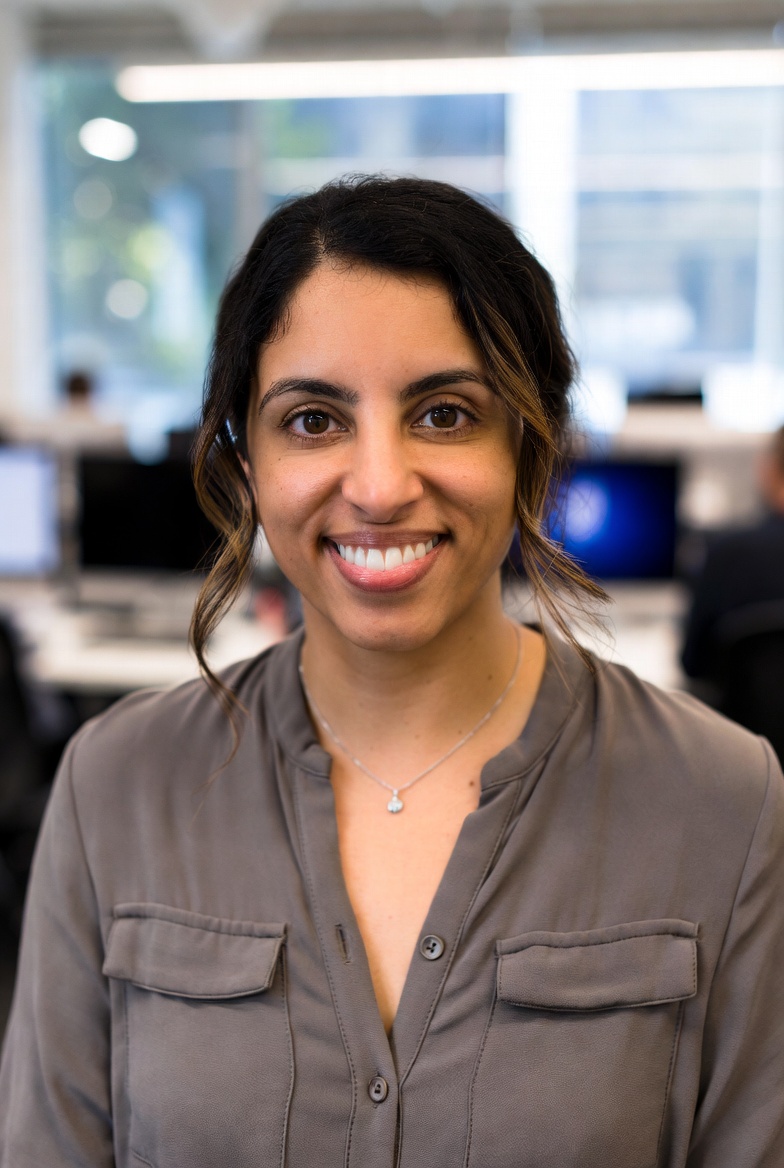
Laura Bennett is a Graphics Programmer & Game Engine Developer with 11 years of experience creating visual rendering systems and game engines. Her deep understanding of computer graphics, shaders, and rendering pipelines allows her to build high-performance graphics applications. Laura specializes in real-time rendering, graphics optimization, and the mathematical foundations that power modern computer graphics.